Showing posts with label money. Show all posts

Friday, August 29, 2014

Evernote Power User Volume 8 Using Sunrise Calendar with Evernote

One limitation that I have found with Evernote reminders is the lack of a way to keep track of completed tasks. When you complete a reminder in Evernote it is only crossed out and no record is kept. I find a benefit in being able to know how well I am doing complete tasks during the day. Sunrise calendar provides a work around, as you can see the completed task in the prior days.


Get Sunrise Calendar here

Wednesday, August 27, 2014

Evernote Power User Volume 7 - Evernote Web Clipper

Doing research on the Internet can be a messy, unproductive thing. I have seen people take a pencil and paper to their computer and write down links and resources from the different websites.  Others, that are more advanced, will open a Word document and create a document for researching.  I find that both of these methods are flawed for researching as they are not good with some of the key things that make research useful, the ability to organize it and reference it.  The Evernote Web Clipper is an extremely powerful tool as allows multiple ways to capture the information from websites. Once you have it captured, you can use the power of Evernote to manage the information. 


1. Article - The article option recognizes the relevant portion of the web page and allow you to take a snapshot of it. 

2. Simple Article - This will place the webpage in a readable mode where all the ads and buttons are taken off the page and the all you are left with are the relevant content in a more readable page. 

3. Full Page - This is will take the full page that you are looking at without cropping anything out. 

5. Bookmark - This will simply place the bookmark of the current page into your Evernote with a small picture from the site and a heading. 

4. Screen Shot - The Screen Shot option pulls up a grid based pointer that allows you to select an area in the web page and take a picture of it. 


Get the Chrome extension here . 


Monday, August 25, 2014

Evernote Power User Volume 6 - Search Evernote Within Google Search

Evernote has a very power search feature. There are a number of things that you can do that will make searching within Evernote easier that I will cover in another blog.  Today's tip simply allows you to search your Evernote library when searching within Google using the Evernote Web Clipper:


1. While in Chrome go to the menu grid and go to Tools -> Extensions. 


2. Under the Evernote Web Clipper select "option" . 


3. Select the option to "Show Evernote content related to my web searches".


Friday, August 22, 2014

Evernote Power User Volume 5 - Note Template (Windows App)

I use Evernote to drive my entire day.  When I am at work, I am feeding Evernote information constantly and referencing old notes to stay productive.  I find that I add the same type of information consistently, so I found using templates as a fast way to create notes.  Doing it this way allows for clean and consistent notes. To do this, follow the steps below:

1. Create a note that has elements that you need in your daily notes such as sections, grids, and tasks.


2. Export the note to a .enex file to the desktop. 


3. With the Evernote app pined to the task bar, drag the .enex file to the pinned shortcut.  This will allow you to the right-click on the Evernote app and create a note with the pinned template. 


Wednesday, August 20, 2014

Evernote Power User - Volume 4 - The "Take Action" Tab

When you become a heavy user of Evernote, you will notice that your notes quickly pile up. The challenge with creating notes on the go is managing the use of the notes.  There are notes that need to be archived for later use such as a receipt.  There are others , like a business idea, that need to acted on in a timely manner.  There is an easy solution for differentiating this, and this is the "Take Action" tag.  The strategy works as follows: 

- Create a tag called "Take Action".
- Create a shortcut for the "Take Action" tag.
- Create a note.
- If the not is something that you will need to take action on soon, place the tag "Take Action" on it.
- Schedule a time , daily , to go through the items in the "Take Action"
- Remove the tag once action has been taken. 


Tuesday, August 19, 2014

Protecting your Smartphone without Otterboxing

Regardless if you are buying your phone subsidized or out-right, it is expensive. The modern smart phone cost (excluding the one plus one) cost between $600 and $800.  The fact is these are sophisticated computers that have been packaged for the consumer.  The problem with this is that people don't often respect the fragility of them until they lay before them with a broke screen.  This is most apparent when you go to the mall and you see them in back pockets.  

The other side of this, is that most people don't want to carry around a case that is built to stop bullets and feels like it. Here are some tips to find that middle ground: 


1. Buy a glass screen protector -Pretty much any phone that  you buy is going to Gorilla Glass which prevents scratches and does a good job of doing so.  The Gorilla Glass alone however does not protect from all scratches and will not protect from most drops. I am not a fan of plastic screen protectors as they negatively affect the the feel and look of the screen. Glass screen protectors  ,like the ones from iloom, increase the protection to your screen without bringing down the quality of the experience. 

2. Stop carrying the phone in your back and front pockets - These should be obvious , but they are not!

3. Buy a lot of cases - I think that people get tired of their phone cases and want that premium look and feel of their naked phone. This often is followed by the immediate drop to the pavement.  Get a bunch of cases so that you keep the new feel to your phone and maintain protection as well. 

Wednesday, April 2, 2014

Evernote Power User - Volume 3 - Read Later

With all the information that we are  thrown everyday,  we need a way to keep the information stored for easy access when you need to read it later.  A well known solution for this is an application called Read it Later , which allows you to send links to the application and read it later when your time allows.  As a Evernote Power User , I try to find ways to move task like this into the Evernote world so that I may reduce the amount of applications I am accessing daily. 

The "_Read Later" Notebook 

What I do is create a note book called "_Read Later" and all links that I can't get to at the moment into that Notebook.  Placing the underscore (_) before the notebook name, places the notebook in the top of your notebook list.    


The Process 

All during the day add items into your "_Read Later" Notebook.  Make sure to tag the note based on it's relevance.  This could be articles you find on the web, mail that you have taken a picture of with your smartphone, or videos that you want to watch from youtube. Block out a time during the day to go over all of the items in the notebook. Once you have read the item, place it in it's own notebook and clean out the _Read Later folder for the next day.  

Doing this will help reduce information overload. 

Friday, March 28, 2014

Evernote Power User - Volume 2 - Task Clone & Evernote


As a follow-up to my previous blog about Evernote reminders, I want to provide a resource for those that use a more robust task management system. I came across a piece of software that leverages the flexibility of Evernote , but allows you to create tasks for just about any task manager out there.  The software is called TaskClone.  What this does is allow you to add checked tasks within an Evernote like so:


 Once Evernote syncs it creates that task into your tasks management system like so:


This simple process can save a great deal of time and effort. TaskClone has a free and paid version in the resource section: 

Resource:


Tuesday, March 25, 2014

Evernote Power User - Volume 1 - Evernote Reminders

I am a productive tool junkie.  I have the need to find different applications, books , and videos on making me more productive and efficient. In this journey, I have tried to find the best note application to dump all the crazy ideas that I have on the daily . There are no applications that came even close to Evernote. There is way to much in Evernote to cover in one blog , so I am going to address specific parts of the application that I will explain in small snacked sized portions. Your Welcome. 

Evernote reminders is a great place to start with this series. Evernote reminders are simply that, they are a setting in Evernote that allows you to make a note a reminder. The reason that this is powerful is the mobile component.  Since the Evernote reminder syncs with any and all platforms you place it on, you will get your reminders where ever you are. Another benefit is that you can create a widget that will show just the notes with reminders. This makes it easy to make Evernote your task management program as well as notes. 

Simply making a note of what you need to do is not enough to stay productive. Evernote reminders are a great way to make your notes actionable.  

Resource:

Monday, March 24, 2014

School is a Forever Thing, Lynda.com


Being in the technology field, I have found that there is no way to get away from continuous learning.  The minute that I stop building on my skills, is the minute that I become less competitive and reduce my opportunities to get money.  I stumbled upon Lynda.com which is an online the site where there are quality instruction videos from everything from video editing to program coding. 

There are a number of Youtube channels that provide some great video tutorials on the same subjects.  The difference that I see is that Lynda.com has a layout of the videos that are the much easier to navigate through.  This makes it easy to get to a specific topic.
 
The site gives me confidence that I can keep up with the trends of my industry.  Take a  look at Lynda.com and keep your skills sharp.

Tuesday, July 2, 2013

The Killer App S Note on The Samsung Galaxy Note 8.0

There are a number of reviews that talk about the Note 8.0. Often the reviews all come from people with a certain perspective. They have either used the Note in a very limited capacity, as it is with people that are tech reviewers. They have the privilege of using a number of different devices that they use for a short amount of time and they treat every device the same.  The Note 8.0 should be set apart from all these other devices because of two specific things: S Note and the S Pen.  

In my opinion there is no better device for the hustler!  The Note 2 is a great device and works as a great companion with the Note 8.0 , but the size of the Note 8.0 extends it's functionality to a high level.  The pairing of the powerful hardware of the Note 8.0 with the S Note software creates one of the most productive platforms that you will find.  It goes far beyond just doodling down a phone number . It allows you to input information how ever you like.  Either by typing it through the the keyboard, placing in a picture, clip art, voice dictation , and some of the best handwriting recognition that you are going to find.

This may not be the device for everyone , but for the hustler, this is a must have.  

Thursday, August 9, 2012

MetroPCS Leading the Way Again with Voice Over LTE

MetroPCS are contually showing that they are a force to be recond with.  They have been able to have a number of notable "firsts" that have made them leading even the big carriers like Verizon. Some of the notable things that they pioneered:


  • The first to offer true unlimited everything.
  • The first to offer 4G LTE in the US (yes they beat Verizon)
  • Now the first to release (voice over LTE) VoLTE.
Most may not understand the significance of VoLTE , but essentially it is similar to the move from beepers to cell phones.  VoLTE will greatly improve the stability of calls and the quality. By making the calls over the Internet there will be a lot more ways to innovate.

The first compatible phone will be the very capable LG Connect!


Read the press release below:

MetroPCS Launches World’s First Commercially Available Voice Over LTE Service and VoLTE-Capable 4G LTE Smartphone
DALLAS, Aug. 7, 2012 /PRNewswire/ — MetroPCS Communications, Inc. (NYSE: PCS) today reached another innovation milestone by announcing the world’s first commercial launch of Voice over LTE (VoLTE) services, availability of the world’s first VoLTE-capable handsets and the first sale of a VoLTE-capable handset at one of the company’s Dallas/Fort Worth store locations. MetroPCS is selling the new VoLTE-capable LG Connect 4G Android™ smartphone at select U.S. stores and will continue to roll out VoLTE services and phones in the coming weeks.
“Being the first operator globally to reach this industry first speaks volumes about our company’s innovative spirit and passion to achieve goals that we believe will have long-term benefit for our customers and for the company,” said Roger Linquist, chairman and chief executive officer of MetroPCS. “The initial move to LTE and this move to VoLTE allow us to achieve significant spectral efficiencies and will increase network capacity so that we can enhance the 4G LTE experience that our customers have today at a tremendous value. VoLTE also provides a foundational capability for future Rich Communication Services (RCS), which we plan to launch later this year.”
The addition of VoLTE capabilities to MetroPCS’ 4G LTE handsets will be transparent to consumers as they continue to enjoy all the voice and 4G LTE data services with which they are already familiar. Calls to and from the handset will use VoLTE, regardless of the handset or network used on the other end of the call.
MetroPCS was the first U.S. carrier to deploy a commercial 4G LTE network in September 2010 and has since built out its 4G LTE network to cover roughly 90 percent of its CDMA footprint.
About MetroPCS Communications, Inc.
Dallas-based MetroPCS Communications, Inc. (NYSE: PCS) is a provider of no annual contract, unlimited wireless communications service for a flat rate. MetroPCS is the fifth largest facilities-based wireless carrier in the United States based on number of subscribers served. With Metro USA(SM), MetroPCS customers can use their service in areas throughout the United States covering a population of over 280 million people. As of June 30, 2012, MetroPCS had approximately 9.3 million subscribers. For more information please visit www.metropcs.com.

Tuesday, August 7, 2012

Turn Your Android Device into a PDF Scanner with Cam Scanner

There are some technologies that the convenience factor is so great that the shortcomings are often ignored.  Cam Scanner is a piece of software that turns your Android device into a scanner .  The results that you get are not as good as a conventional scanner, but since it's in your pocket you can have a scanner available at all times.

Here are some common uses :


  •  Receipt, Bill, Tax Roll
  •  Business Card, Membership Card, VIP card
  •  Agreement, PPT and Whiteboard
  •  Note, Memo, Script, Letter
  •  Books, Magazines, Newspaper, Poster, Coupon
  •  Courier Sheet, Resumes,
Resources: 

Thursday, July 19, 2012

Finance Management , the Mobile Way

To properly manage your business and take your hustle to next  level, aggressive money management has to be a priority. Money management is not sexy but can be made bearable by using the right tool to fit your needs.

The best place to start , is your financial institutions. All the big banks have a website and most have a Android app that you can do the main functions from the site.  I use Chase, here are some examples of options I have found useful from their mobile solutions.


  1. Text notifications can be set for many thing that happen on your account .  Set it for daily balance updates and a text for each transaction.
  2. The Android and iPhone app both allow you to scan checks and deposit them on the go.

Money Management Apps 

Mint.com is a feature rich program for managing personal finances.  It also has a Android app that syncs the information from the website to your device. This program can give you an overview of financial situation and provides graphs to


PageOnce is also a money management system with both a web an Android app.  The strength of the application is it's notification system that will let you know when bill due dates are coming up.   This application also allows you to pay bills within the app, making it a must have money management app.


Thursday, July 12, 2012

Plot out Your Empire with Mindmeister

People process information in many different ways.  For those that process information easiest by creating diagrams, Mindmeister can help you visualize your empire.  Mindmeister is a web application that has an Android component which allows you to do tree-like diagrams where one item braces to the next.  This is great for me when planning businesses, as it gives me a visual representations of how the business needs to be set up and the and the details that relate to it .

The service is free for a limited amount of diagrams.  The Android application is also free, and stays consistent with the look and feel of the web application.


Resources:

MindMeister Web App
MindMeister Android Application

Wednesday, July 11, 2012

Your Next Million Dollar Idea is in Jeopardy

Ideas are the fuel for the hustler. The bad thing about some ideas, is that they don't usually come when you're sitting at your desk, ready to jot them down in Microsoft Word.  They often come while you're on the toilet , in the shower, in bed or driving.

Capturing your next million dollar idea is important , so here are some ways for you to get those ideas saved FAST :

1. Hovernote -Hovernote is a note taking program like many others , but what sets it apart is that it (as its name implies) hovers over your screen when using it.  This comes in handy because you can open Hovernote and  leave it open in your notification bar until you need it.  When you want to jot something down , you simply pull down the notification bar and start typing.


2. Google Search "Note to Self" feature - Native in the Google search utility is a little known feature that allows you to take quick notes.  To activate it you simply have to hold down the search button on your Android device.  The voice prompt will come up and you will dictate your note by starting with the words "note to self".  After your note is taken, you will be placed in an interface allowing you to send the text of the note that you just too plus the audio to your email.  Make sure you create a filter and note label to organize these messages and you are good to go.


Tuesday, July 3, 2012

Must Have App for Job Seekers - Clapp for Craigslist Notifications

Being the first to know is a great tool for the hustler. Being first to know will get you that product at a great price before anyone knows about it.  It will get you that job before a thousand people have applied.  Having information fast is a big deal to keeping the money flowing.

Craigslist is the hub for local transactions and knowing about posts that have been made can allow you to get a step ahead of your competition.  I found a great suite of apps for your Android device that will give you notifications each time something that is relevant to what you need is posted.  To set it up you will simply create a search criteria that you will create a scheduled search for.  These searches can be set to be done as frequently as every 10 minutes.  When a new item that is posted under your search criteria, you will receive a notification.  

This set up requires two peices of software for your Android Device:

Wednesday, October 26, 2011

Get Office Software on Your Android Device for Free Today

If you have an Android device, you should get familiar with the Amazon app store.  It is similar to the regular Android app store but it gives you a free app everyday that is normally free.  Half of the time the software is not worth the free download.  There are those times when you will get gem, and today is one of those days!

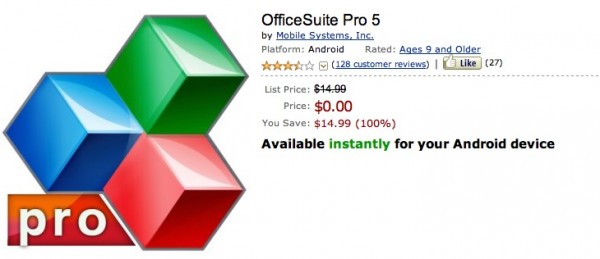
Amazon is offering the Office Suite OfficeSuite Pro , which is normally $15 , for free.  This app comes in handy when you need to make that quick edit to a spread sheet or start writing that paper while on the bus.  Programs like this essential for your hustle, so go get it now!


Resource :

Amazon Store Link 

Friday, October 14, 2011

Evernote, Not Just for Recipes

I think if you have any experience with the Internet at all, then you have some familiarity with Evernote.  Evernote is the do it all program that is available for any platform you can think of Web, Android, iOS, Honey Comb, etc. The great thing about Evernote is that there is a lot for the busy man or woman in you.


Some of the uses are :

For students:

  • If you are a student on campus use the HP View tablet has a pen enabled Evernote that will allow you to take a digital note writing on the tablet like a notepad.
  • If you are an online student, use Evernote to start your discussion topics. 
For Business Owners 
  • Use your mobile Evernote program to take pictures of business cards , which are then searchable in Evernote.
  • Keep notes of things done for a client , this is a great way to keep time stamped notes for future reference. 
For the Home Administrative Engineer (House Wife/Husband)
  • Using the mobile app , scan receipts to keep up with expenses and stay organized.
  • Create a recipe book with pics and organize them with tasks for easy the reference. 
This is truly just a few things that can be done with Evernote, spend some time playing with it on all your devices so you have access to your notes everywhere.  

Resources:


Thursday, October 13, 2011

Producteev + Astrid The "Getting Things Done" Marriage

This is the first post that I will be making on this blog and I wanted it to represent what this blog is about. The goal that I had when thinking of creating a blog was to empower the "Go-Getters".  I want to make sure that the tech that people use everyday, are used to their fullest potential. I also want to inform people of new technology that will help them run their business, go through school , or navigate their careers.

The program (or programs) that fit this bill, are Producteev and Astrid.  These are two programs but they work together as a great task/to-do management system. I have spent hours researching a task management system and this one by far brings the most features and the cleanest interface.


Producteev is a web based program at www.producteev.com, it uses a very colorful interface and is very flexible.  The best way to use this is by using the GTD methodology by David Allen.  If you are not familiar with the GTD methodology, and to get a walk through on how to use it with Producteev, check out this article here for more details.


Astrid is an Android app that has been out since the early days of Android.  This means that it has been developed to be very stable and feature rich.  The interface can be modified to light , dark or transparent so you have enough options there to make it visually pleasing.

The power of these systems are from the pairing of the two programs.  The key to making this work for you is to get very familiar with the Producteev program, spend time setting it up, and sync the tasks with Astrid.  This is a seamless process and makes your Android device your reminder for all of your tasks.  When used properly, it can really make a difference in your productivity.   I have used these programs for school and my business for the last four months and I have found that I am getting more done and wasting less time.

These are free programs so there is no excuse for not getting that long list of objectives done and putting more money in your pocket as a result!

Resources:

Producteev Website
Astrid Program
GTD Methodology with Producteev
Getting Things Done by David Allen (Book)