Showing posts with label notes. Show all posts

Friday, August 29, 2014

Evernote Power User Volume 8 Using Sunrise Calendar with Evernote

One limitation that I have found with Evernote reminders is the lack of a way to keep track of completed tasks. When you complete a reminder in Evernote it is only crossed out and no record is kept. I find a benefit in being able to know how well I am doing complete tasks during the day. Sunrise calendar provides a work around, as you can see the completed task in the prior days.


Get Sunrise Calendar here

Tuesday, March 25, 2014

Evernote Power User - Volume 1 - Evernote Reminders

I am a productive tool junkie.  I have the need to find different applications, books , and videos on making me more productive and efficient. In this journey, I have tried to find the best note application to dump all the crazy ideas that I have on the daily . There are no applications that came even close to Evernote. There is way to much in Evernote to cover in one blog , so I am going to address specific parts of the application that I will explain in small snacked sized portions. Your Welcome. 

Evernote reminders is a great place to start with this series. Evernote reminders are simply that, they are a setting in Evernote that allows you to make a note a reminder. The reason that this is powerful is the mobile component.  Since the Evernote reminder syncs with any and all platforms you place it on, you will get your reminders where ever you are. Another benefit is that you can create a widget that will show just the notes with reminders. This makes it easy to make Evernote your task management program as well as notes. 

Simply making a note of what you need to do is not enough to stay productive. Evernote reminders are a great way to make your notes actionable.  

Resource:

Tuesday, July 2, 2013

The Killer App S Note on The Samsung Galaxy Note 8.0

There are a number of reviews that talk about the Note 8.0. Often the reviews all come from people with a certain perspective. They have either used the Note in a very limited capacity, as it is with people that are tech reviewers. They have the privilege of using a number of different devices that they use for a short amount of time and they treat every device the same.  The Note 8.0 should be set apart from all these other devices because of two specific things: S Note and the S Pen.  

In my opinion there is no better device for the hustler!  The Note 2 is a great device and works as a great companion with the Note 8.0 , but the size of the Note 8.0 extends it's functionality to a high level.  The pairing of the powerful hardware of the Note 8.0 with the S Note software creates one of the most productive platforms that you will find.  It goes far beyond just doodling down a phone number . It allows you to input information how ever you like.  Either by typing it through the the keyboard, placing in a picture, clip art, voice dictation , and some of the best handwriting recognition that you are going to find.

This may not be the device for everyone , but for the hustler, this is a must have.  

Wednesday, July 11, 2012

Your Next Million Dollar Idea is in Jeopardy

Ideas are the fuel for the hustler. The bad thing about some ideas, is that they don't usually come when you're sitting at your desk, ready to jot them down in Microsoft Word.  They often come while you're on the toilet , in the shower, in bed or driving.

Capturing your next million dollar idea is important , so here are some ways for you to get those ideas saved FAST :

1. Hovernote -Hovernote is a note taking program like many others , but what sets it apart is that it (as its name implies) hovers over your screen when using it.  This comes in handy because you can open Hovernote and  leave it open in your notification bar until you need it.  When you want to jot something down , you simply pull down the notification bar and start typing.


2. Google Search "Note to Self" feature - Native in the Google search utility is a little known feature that allows you to take quick notes.  To activate it you simply have to hold down the search button on your Android device.  The voice prompt will come up and you will dictate your note by starting with the words "note to self".  After your note is taken, you will be placed in an interface allowing you to send the text of the note that you just too plus the audio to your email.  Make sure you create a filter and note label to organize these messages and you are good to go.


Tuesday, November 8, 2011

Voice Dictation Through Your Android Device

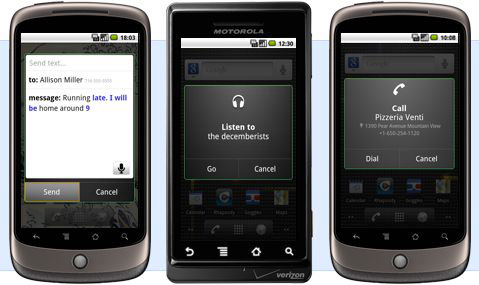
The use of voice dictation on the Android devices has not gotten it's props,  due to the popularity of Seri (the dictation service on the iPhone) .  Android has really made huge strides with their voice recognition software and there are some things that you can do with it to make you more productive:

  • Use it to update word documents on the go.  This is a great way to start a report without typing.
  • Call local businesses by just saying "Call" and the business name.  It uses Google maps to find the business and calls them.
  • Say "note to self" and say a message.  It will send an email to your Gmail address with the audio.  This makes a great instant reminder. 


References:

Friday, October 14, 2011

Evernote, Not Just for Recipes

I think if you have any experience with the Internet at all, then you have some familiarity with Evernote.  Evernote is the do it all program that is available for any platform you can think of Web, Android, iOS, Honey Comb, etc. The great thing about Evernote is that there is a lot for the busy man or woman in you.


Some of the uses are :

For students:

  • If you are a student on campus use the HP View tablet has a pen enabled Evernote that will allow you to take a digital note writing on the tablet like a notepad.
  • If you are an online student, use Evernote to start your discussion topics. 
For Business Owners 
  • Use your mobile Evernote program to take pictures of business cards , which are then searchable in Evernote.
  • Keep notes of things done for a client , this is a great way to keep time stamped notes for future reference. 
For the Home Administrative Engineer (House Wife/Husband)
  • Using the mobile app , scan receipts to keep up with expenses and stay organized.
  • Create a recipe book with pics and organize them with tasks for easy the reference. 
This is truly just a few things that can be done with Evernote, spend some time playing with it on all your devices so you have access to your notes everywhere.  

Resources: